Create a new NCR
To create a new Non-conformance Report (NCR), follow these steps:
Initiate NCR creation
Go to Non-Conformance Report module on the navigation panel and click New NCR. As a result, you will be directed to the Create NCR wizard that includes the following stages:
- Details
- Description / Potential Impacts
- Documents
- Key Attributes
- NCR Attributes
- Overview
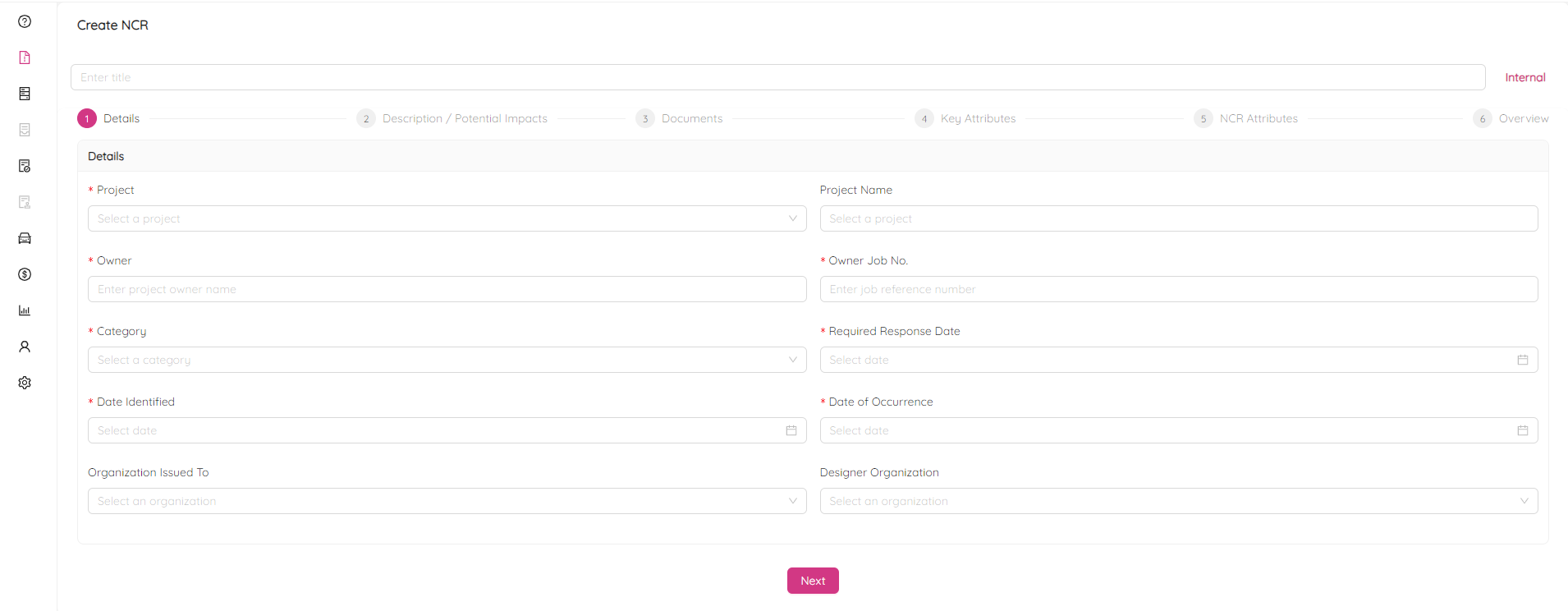
NOTE: all mandatory fields are marked with an asterisk (*)
First, specify the NCR title at the top of the page. Next to the title you can see the NCR type, which is Internal by default and can be changed later.
Details
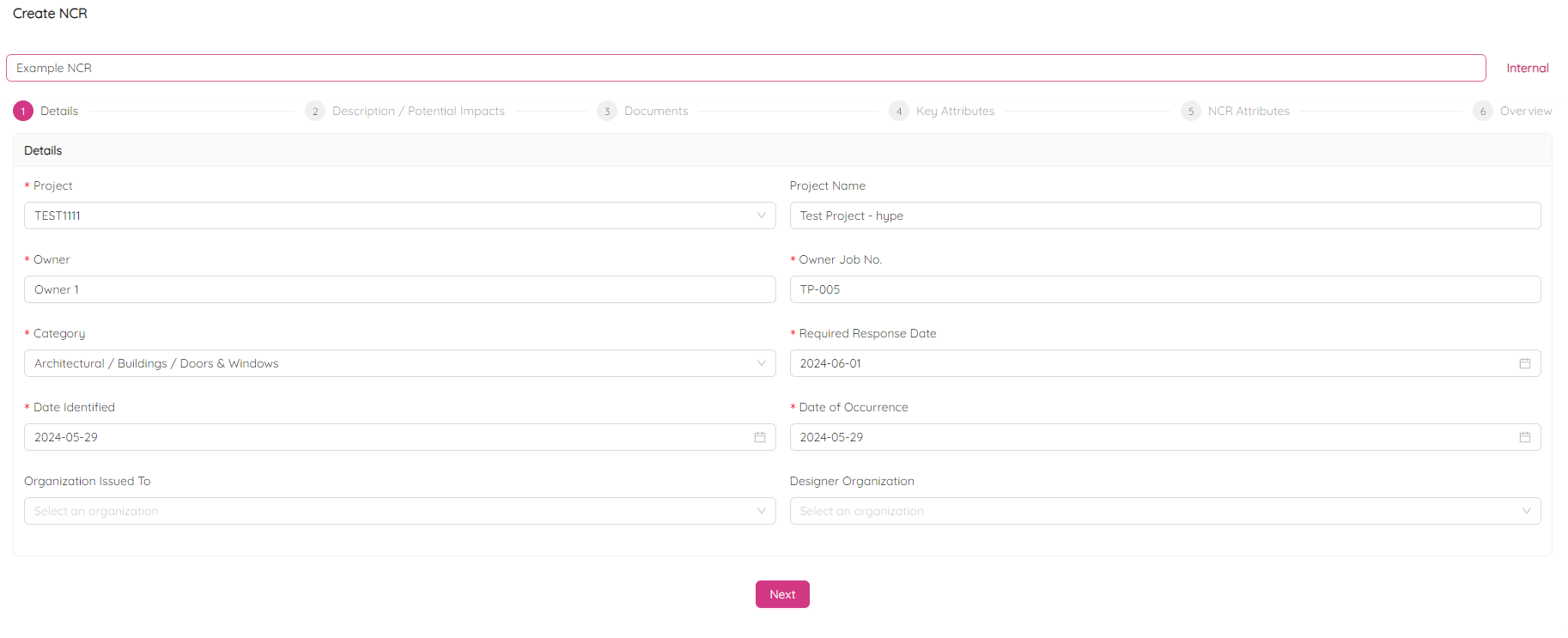
- Provide basic information about the project and company the new NCR is for.
- Use the drop-down menu to choose your project, which will populate the Project Name, Owner, and Owner's Job No.
- Use the drop-down menus to select the Category, Required Response Date, Organization Issued To, and Designer Organization. If you cannot find the Organization/Designer Organization in the drop-down menu, contact your Project Administrator for assistance.
- Click Next to proceed.
Description / Potential Impacts
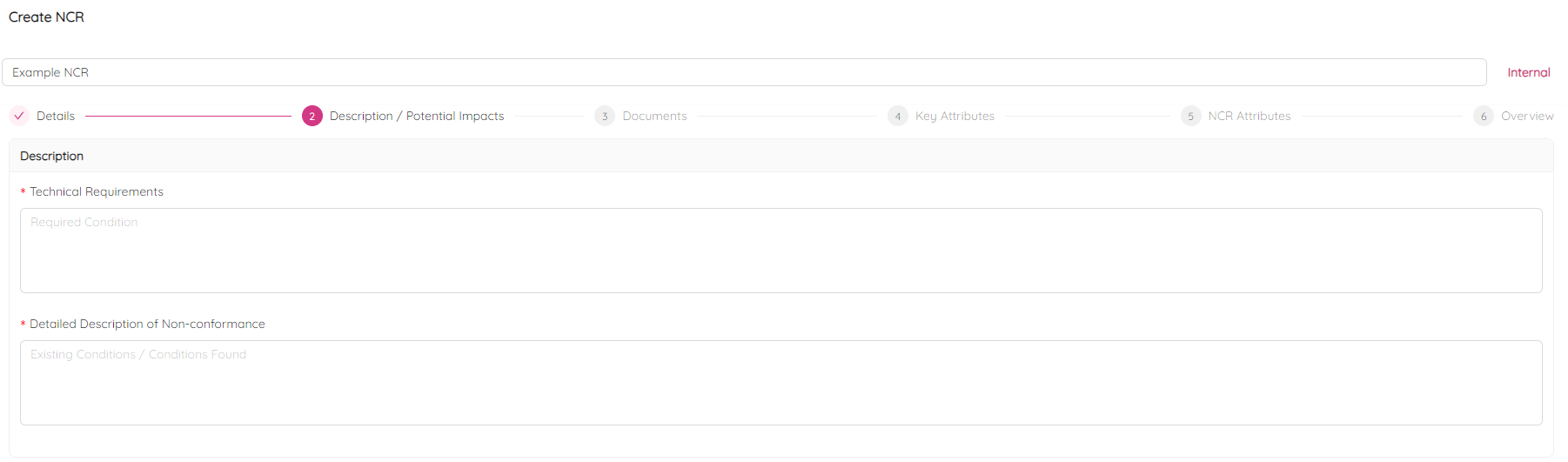
- Provide as much information as needed in the following fields:
- Technical Requirements: Information from the specs, drawings, or industry standards.
- Detailed Description of Non-Conformance: Described details of actual condition, installation and what went wrong.
Potential Impacts
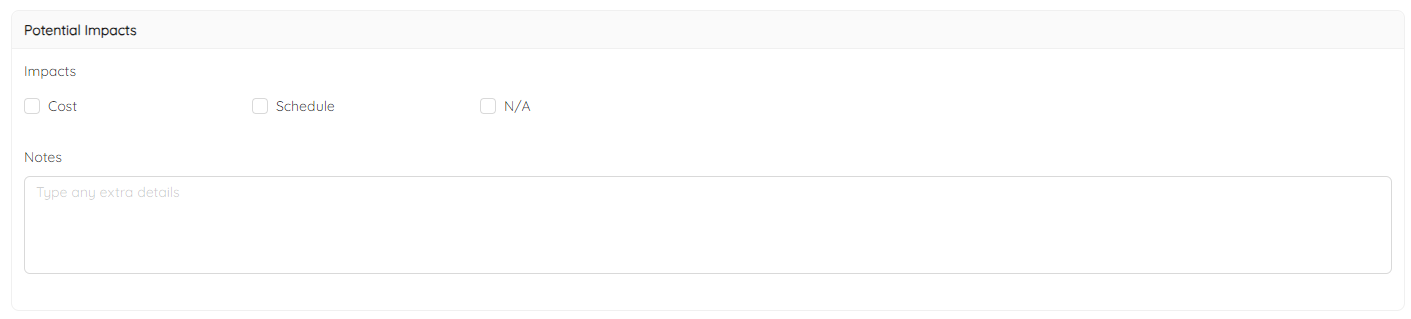
- Indicate if the NRC could lead to Cost or Schedule impacts by selecting the appropriate checkboxes.
- If neither are impacted, select N/A.
- Provide details of the impact in the Notes textbox.
- Click Next to proceed or Previous to return to the earlier stage.
Documents

- Enter the Document ID of the Change Order that might have been created due to the RFI to assist in reconciling approved Change Orders.
- If the Change Order number has been used in the system before, it will be available to choose from the dropdown list. If not, enter the Change Order number in the cell.
Reference Documents

- Attach all relevant documents for the NCR, including IFC drawings, Project Specifications, Shop Drawings, Material Data Sheets, Pictures, Schedules, Change Order Requests, etc.
- Click on the icon to upload the first attachment, then follow the prompts to select and upload documents.
- If necessary, change the document title or indicate if redlining is required.
- Add more Reference Documents or delete them as needed.
Key Attributes
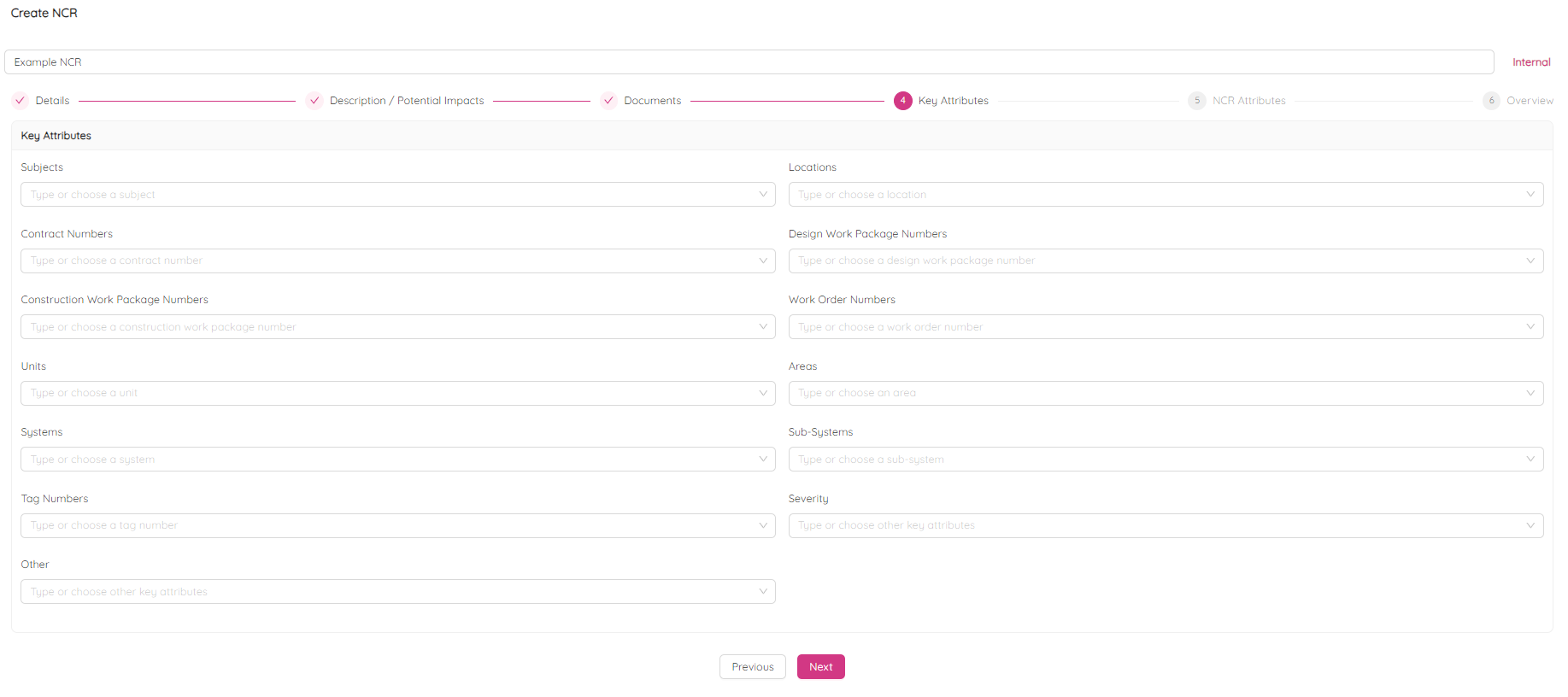
- Fill in optional fields with available information, such as Subjects, Locations, and others.
- Providing more details will help with filtering RFIs based on Key Attributes and generating useful analytics.
- Click Next to proceed or Previous to return to the earlier stage.
NCR Attributes
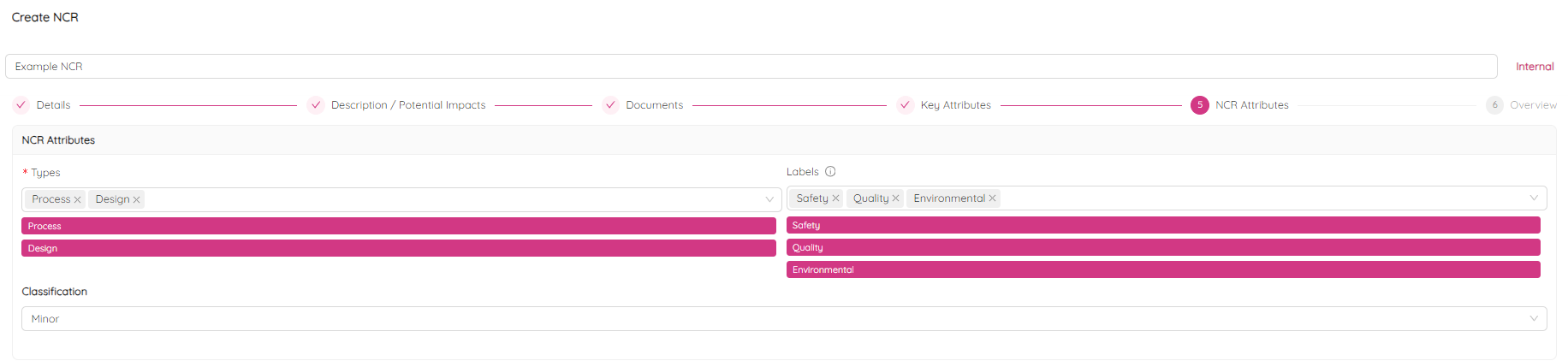
NCR attributes include Types, Labels, and Classification and designed to facilitate extra analytics.
Types describe a type of the NCR and can one or more of the following:
- Process - The prescribed process was not followed (generally this NCR type is applied when work is still in progress and it is not a final product. Once the item reaches completion the Product type should be used as it is a non-conforming product).
- Product - Product does not meet Code, Specification, or Regulatory requirements. Work is complete and has been released for inspection.
- Design - A design NCR is typically issued when there is a conflict between the project's specifications, regulatory requirements, and/or drawings.
Labels add even more categorization supporting further trending and analisys. You can pick one or more.
- Safety - NCR may have a direct or indirect affect on safety.
- Supplier - NCR relates to a supplier.
- Subcontractor - NCR relates to a subcontractor.
- Project Controls - Relates to cost estimating and management, risk management, planning and scheduling, scope and change management, document control, and project reporting.
- Quality - NCR may have a direct or indirect affect on quality.
- Procurement - NCR relates to the various stages of procurement, potential suppliers, quotations, terms, etc.
- Material Management - NCR relates to the materials on site from the point of receipt to its final use or installation.
- Environmental - NCR relates to nay environmental damage caused during the project.
- Document Control - NCR decribes a situation where a company's document control procedures or processes are not being followed, resulting in non-conformance with the company's quality management system or other regulatory requirements.
- Pre-construction - NCR documents non-conformances identified during the pre-construction phase of a project.
- Execution - NCR relates to non-conformances identified during the execution phase of a project.
- Commissioning
- NA - not applicable
Classification defines the level of impact and can be one of the following:
- Minor
- Major
- Critical
Additional Options

Additional Optios allow to add responsible person without access to ETHOS or the NCR created in another format, as well as the date of the original NCR and the name of the individual that created the original.
Click Next to proceed or Previous to return to the earlier stage.
Overview
At the final stage review your NCR, click on the Create button to complete the process, or Previous to return to the earlier stage.